Tip #3 – use the Presenter View during your presentations!
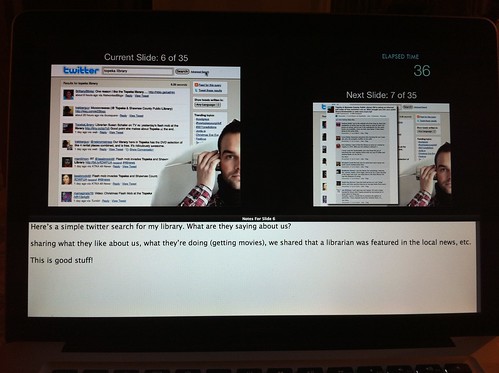
The image above is my presentation … in presenter view. I always use presenter view (unless I’m doing a webinar from my office). Here’s why:
- Presenter view (in Keynote anyway) displays two slides at once, so I know what’s coming up next
- presenter view has those notes I mentioned in Tip #2 – so if there’s something I want to say a certain way, I can simply glance down at my notes on the screen – pretty handy!
- Notice the timer in the upper right hand corner? Huge help for making sure I stay on schedule.
If you get too wordy in the presenter notes box, you have two options: 1. a scroll bar will appear – sorta awkward on the fly, but it will work; 2. break that idea into multiple slides. You can even use a copy of the current slide – it won’t change what anyone sees, but your notes will change “behind the scenes.”
Pretty tricky thing, that presenter view!
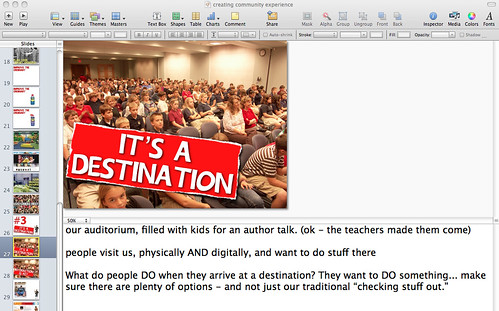
 People tell me they like the way I do presentations … so I thought I’d share some tips and tricks I’ve learned along the way.
 Overdrive apparently experienced an “after Christmas rush” that has
  So last week, some of you probably heard that the Delicious.com service was possibly being – their term – “sunset.” Then