This was my session – here are my slides – enjoy! Look at the slides, and read this person’s notes, and you will get a good feel for the discussion.
Social Media Strategy & Goals
View more presentations from David King
social media | emerging trends | libraries
This was my session – here are my slides – enjoy! Look at the slides, and read this person’s notes, and you will get a good feel for the discussion.
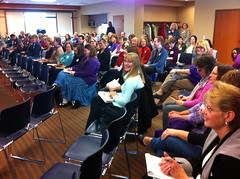
Earlier this week, I spoke at the New Berlin Public Library in Wisconsin for the Waukesha County Federated Library System – Wisconsin has some great librarians for sure!
This was a well-attended talk, and there was some really good discussion afterwards. They are definitely thinking about and planning for the future.
And – just for the attendees – I warned you guys! I said I would post this pic to Flickr, and I did. It also makes a great addition to this post. Text is often much better with visuals… 🙂
Anyway – here’s the Slideshare version of my Wisconsin talk. This was a longer presentation (3 hours), and I combined some thoughts from my usual Freak Out presentation and my newer Creating Customer Experience presentations. The content blends together pretty nicely.
While in beautiful Australia, I met lots of cool librarians … and gave a couple of presentations, too. Here are the Slideshare versions of the presentations – you had to be there to get the full effect, but still – it gives a glimpse.
Freak Out , Geek Out, Seek Out – I found a couple of Australia examples for this presentation, which was fun.
Creating Customer Experience. At VALA, I combined this one with the Freak Out presentation above.
Modern LibGeek Landscape – some Provocative Questions. A bit of explanation on this one. It was meant to start discussions, and be a bit “out there.” Hence the odd questions!
I recently gave this presentation at ALA11 and at the Virtual ALA11 conference, along with Kolene Allen who focused on Twitter. Both sessions went well … and someone has been asking me to post my slides! So here they are:
In my part of the presentation, I talked about what libraries can do with Facebook Pages, and why they might want to use Facebook Pages to reach out to customers.
If you’re interested, this fall (November 2) I’ll be doing a 90-minute version of this, through the great ALA Techsource webinars – stay tuned for that later on this year!
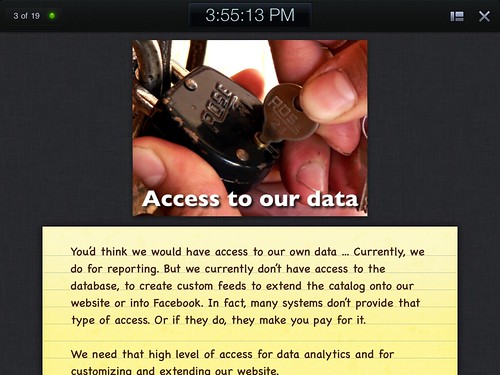
A couple of weeks ago, I gave a presentation using my iPad, and it worked out pretty well! I used the iPad version of Keynote (Apple’s Powerpoint-like presentation software). Keynote has a handy-dandy presenter notes feature that is really easy to use, so your notes are on your screen, and your slides still appear on the LCD projector – in a much easier and user-friendly way than Powerpoint.
Guess what? The iPad version of Keynote does the same thing. The screengrab above shows the presenter notes view on the iPad. If there’s more text than shows on the screen, just use your finger to scroll down to the rest of the text.
You also use your finger to advance slides – just swipe the screen, and slides advance. Swipe the other way to go back a slide. Pretty simple to use!
Now – how did it work?
There were a couple of oddities, too:
So – looking to do a presentation without having to lug around a laptop? You might consider using an iPad/Keynote setup – easy stuff!